
Get a summary of this article with your favorite AI:
The Start Calling Homepage provides new Admin and trial users with a streamlined, step-by-step onboarding experience that simplifies the path to calling via BatchDialer. By guiding users through key setup steps and providing vital metrics directly on the homepage, it helps users get the most out of their BatchDialer experience from the start.
Release Highlights:
- The Start Calling Homepage is a centralized onboarding hub that guides new Admin and trial users through essential setup tasks—including lead imports, phone number configuration, and campaign creation.
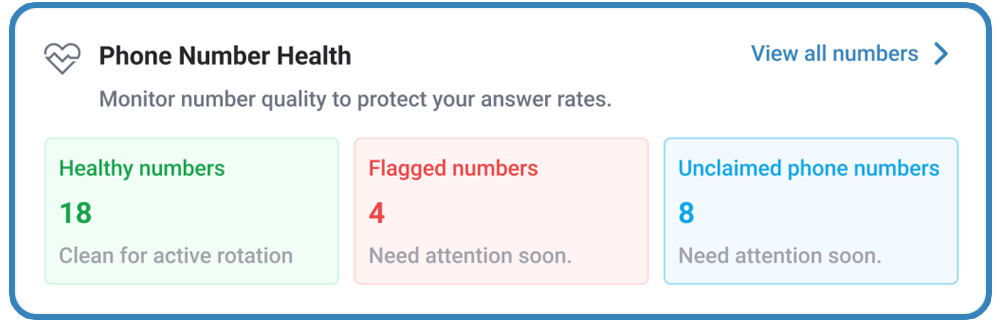
- It includes an overview of Phone Number Health, allowing users to see at a glance how many numbers are Healthy, Flagged, or Unclaimed.
- The Campaign Snapshot section helps users keep a pulse on their campaigns without leaving their dashboard.
- A dedicated Training & Support section allows users to continue their BatchDialer education and contact team members as needed, without having to browse multiple web pages.
What if there didn’t have to be a learning curve for making your first outbound call using BatchDialer?
Introducing—BatchDialer’s Start Calling Homepage!
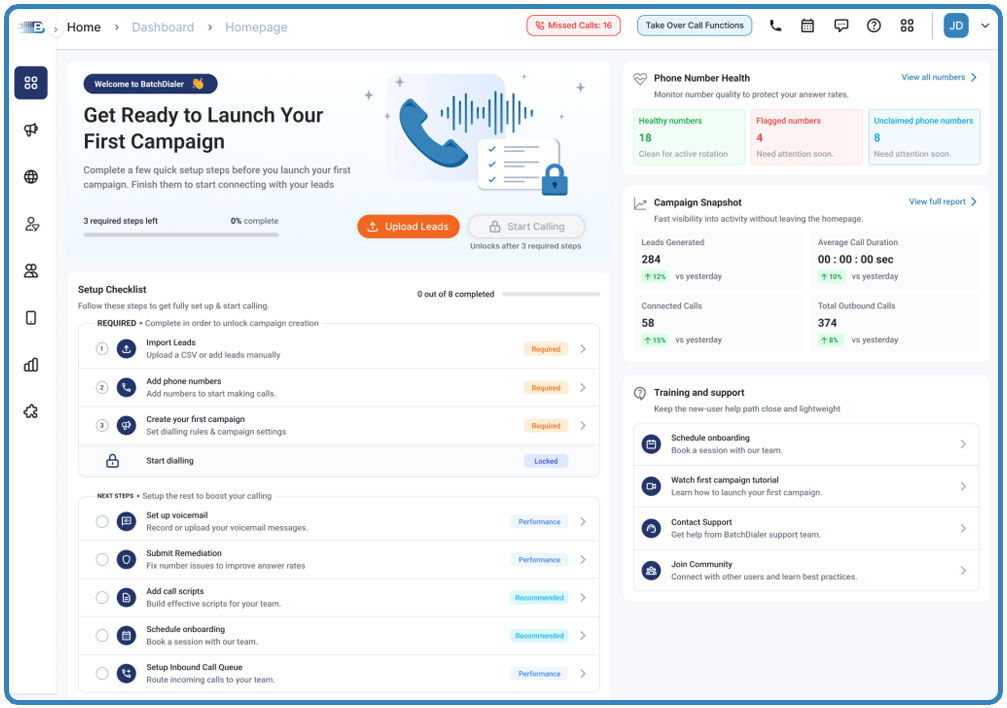
BatchDialer’s Start Calling Homepage is designed to help new users get up and running faster.
Where new users (or those who have not yet made a call in-app) previously saw the Live Dashboard immediately after logging in, they will now see the temporary Start Calling Homepage, which features a guided onboarding checklist that clearly outlines the steps required to configure an account, launch a campaign, and make those first outbound calls with confidence. Also, the Start Calling Homepage features real-time data that lets users track campaign performance and verify the status of their phone numbers.
Experience the new homepage firsthand with this interactive demo.
Psst! Need a little extra BatchDialer help? Live Support is here to help you resolve your BatchDialer questions and concerns in real time.
You can reach out to support via email at support@batchdialer.io or by calling (877) 899-6534.
Let’s dive into what else users can expect from the Start Calling Homepage.
What Changed
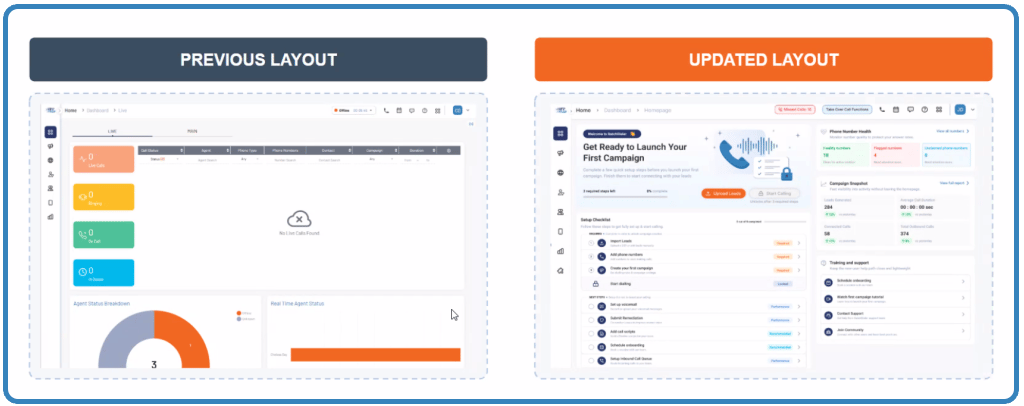
Previously, when starting a free trial or logging in to a BatchDialer account, users would see their standard Live Dashboard view.
Now, users who either:
a.) Are utilizing a free trial, or
b.) Have not made an outbound call from BatchDialer
Will see the Start Calling Homepage instead when they log in.
| Note: Since the primary purpose of the Start Calling Homepage is to accelerate the path to dial during the earliest stages of the customer journey, the Live Dashboard view will replace the Start Calling Homepage after the first call is made. However, the Start Calling Homepage will remain manually accessible depending on user account permissions. |
What You Will See on the Start Calling Homepage
Onboarding Steps
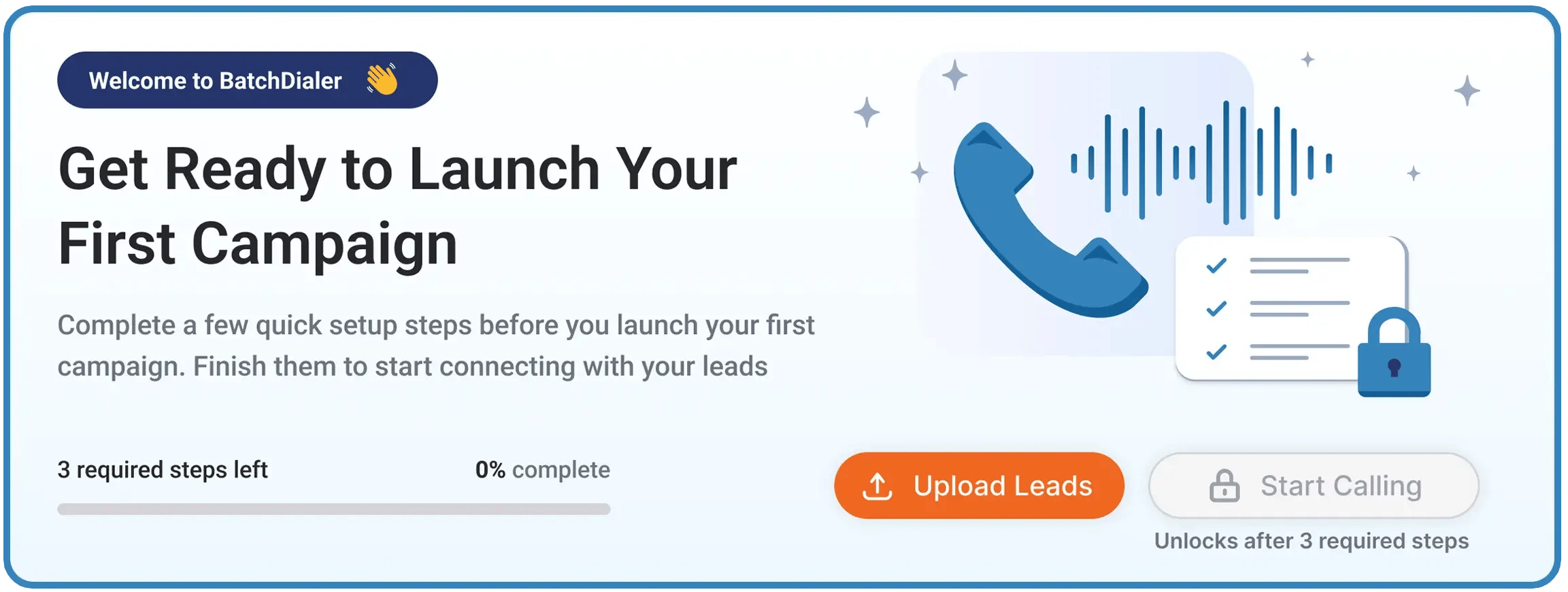
At the top of the Start Calling Homepage, users will see an onboarding checklist with 3 steps that are required before they can begin cold-calling in BatchDialer.
They are:
- Import Leads: Users are prompted to upload leads to start calling. These can be via CSV or input manually.
- Add Phone Numbers: Next, users are prompted to add numbers to start making calls.
- Create your first campaign: Lastly, users can set dialing rules and custom campaign settings.
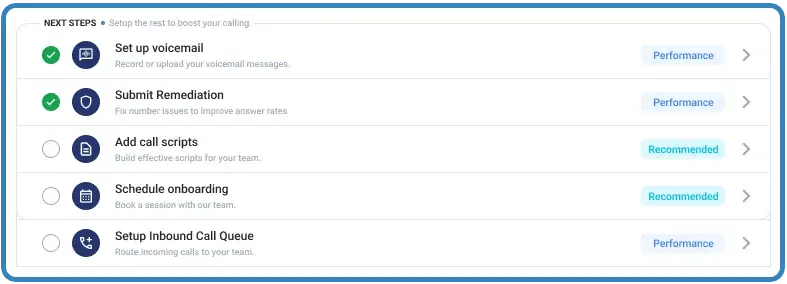
| Note: The 3 steps mentioned above are required to start making calls, but the onboarding checklist offers additional steps to enhance your BatchDialer experience and maximize your outbound dialing experience. These steps include: – Set Up Voicemail – Submit Remediation – Add Call Scripts – Schedule Onboarding – Set Up an Inbound Call Queue |
Phone Number Health
| Note: Clicking View all numbers redirects users to the Phone Numbers section of their account. |
Phone Number Health currently appears on the Phone Numbers page, allowing users to monitor the health and reputation of their active numbers.
However, to make it easier for newer users to access, the Start Calling Homepage moves the most important phone health data to one of the first things they see after logging in.
The Phone Number Health section offers insight into:
Healthy Numbers
Displays the number of healthy phone numbers associated with the account using existing system data.
Flagged Numbers
Displays the number of phone numbers requiring user attention using existing system data.
| Note: This information is especially valuable for Starter Plan users, as automatic number replacement is not available. However, additional phone numbers can be purchased manually at any time. See the phone number purchase guide for step-by-step instructions. |
Unclaimed Phone Numbers
This widget surfaces the number of available phone numbers included in a user’s plan that have not yet been claimed or activated.
The goal is to encourage users to fully utilize their allotted phone numbers, as greater number rotation can improve phone number health and overall dialing performance.
| Pro Tip: For more detailed insights and management options regarding phone number health, navigate to Phone System > Phone Numbers. |
Campaign Snapshot
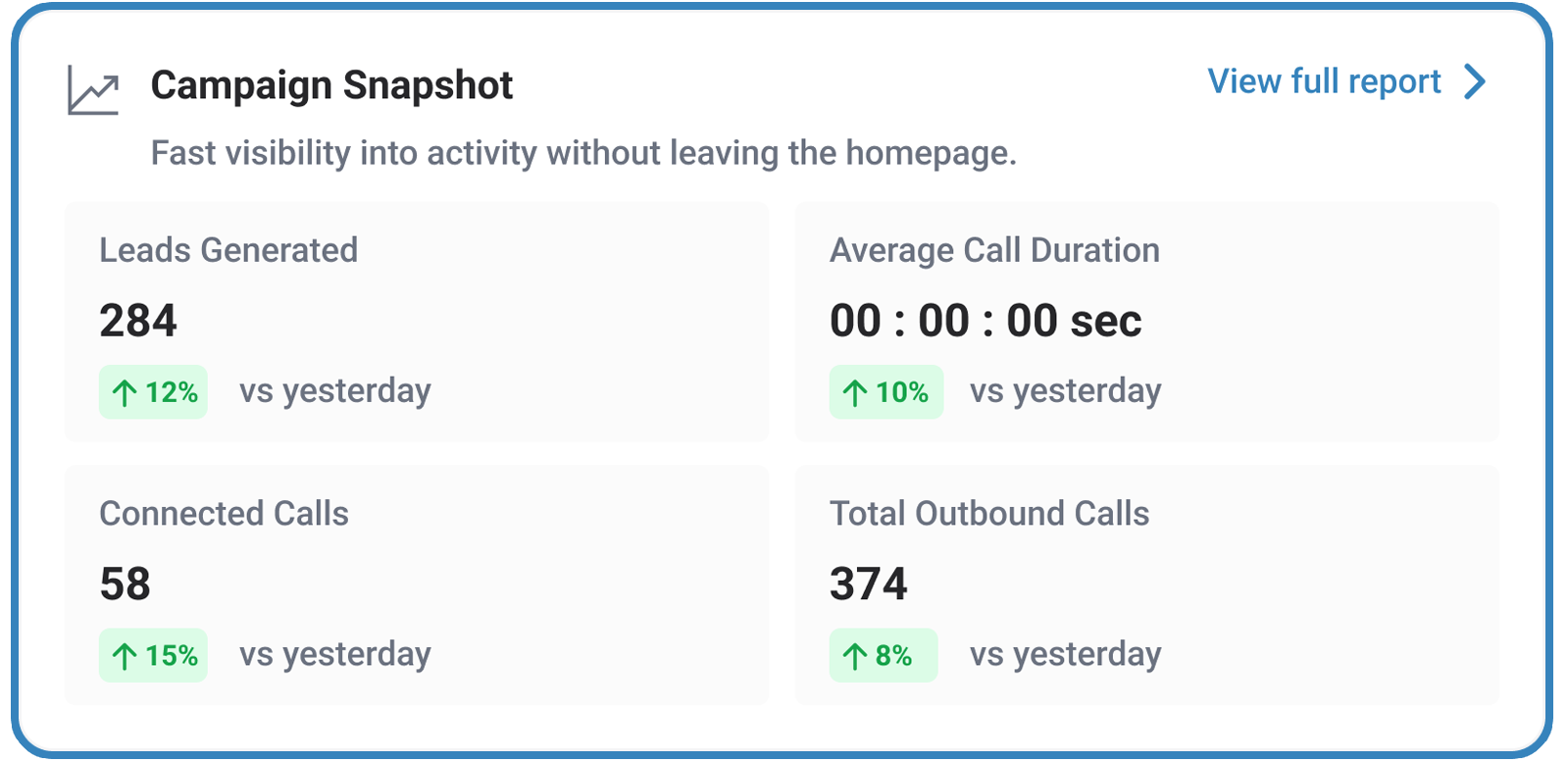
The Campaign Snapshot section displays essential details directly on the Start Calling Homepage, allowing you to monitor your campaign’s most critical metrics at a glance.
For a comprehensive analysis, you can access the complete results by clicking the View Full Report button located in the upper-right corner.
The metric boxes shared in the Campaign Snapshot are:
- Leads Generated
- Average Call Duration
- Connected Calls
- Total Outbound Calls
Additionally, each metric includes a percentage indicating whether the value increased or decreased from the previous day.
Training & Support
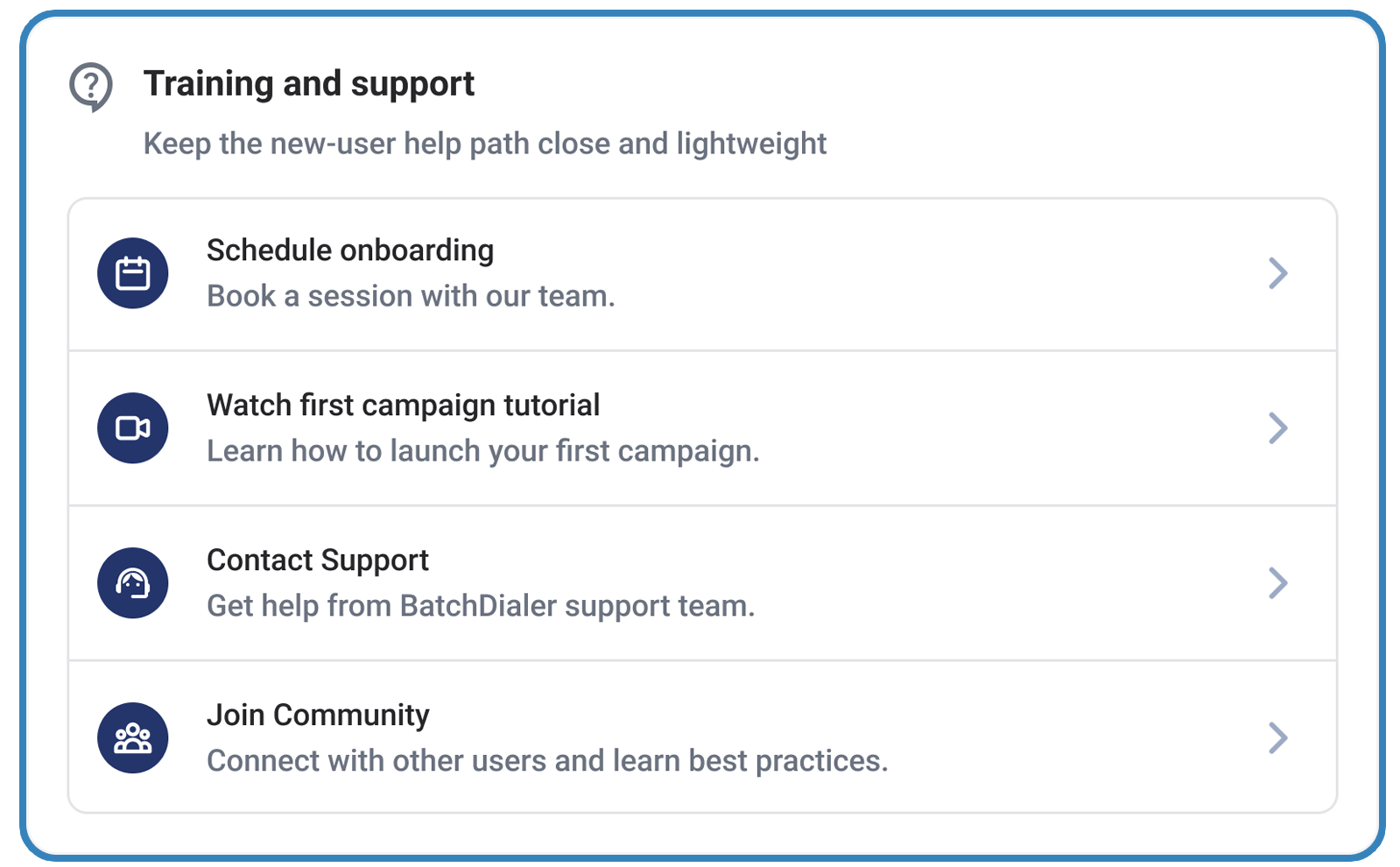
The Training & Support section offers vital resources for new users to ask unique questions, watch tutorials, and schedule an onboarding session with a BatchDialer pro, helping them get the most value from their trial or subscription.
Actions users can take from this section include:
- Schedule an onboarding session with a member of BatchDialer’s team to help you start dialing.
- Watch a tutorial focused on launching a first campaign.
- Contact support to ask platform-specific questions.
- Join the user community for tips on best practices, FAQs, and more.
Try BatchDialer for 7 Days Free to Explore the Start Calling Homepage
BatchDialer is the industry’s top outbound dialer, with a library of features designed to help users make the most informed calls in the least time, protect phone number integrity, and turn more conversations into business.
However, your system is only as good as your ability to navigate it. The Start Calling Homepage mitigates the learning curve associated with a new system, enabling users to spend more time making calls and getting results and less time fumbling with a new interface.
Interested in experiencing the Start Calling Homepage first-hand? Log in if you are an existing BatchDialer subscriber who has yet to place a call or sign up for a 7-day free trial today.
FAQs
Who will see the Start Calling Homepage?
The Start Calling Homepage is displayed to:
- Trial users
- Admin users with zero lifetime outbound calls
Users who have already completed an outbound call will continue to see the standard Dashboard Live experience by default.
What is the Start Calling Homepage?
The Start Calling Homepage is a guided onboarding experience designed to help new BatchDialer users complete setup and begin making outbound calls as quickly as possible. It provides a centralized view of the key actions required to get started, reducing confusion and accelerating activation.
Can users still access the Start Calling Homepage after activation?
Yes. While Dashboard Live becomes the default landing page after activation, the Start Calling Homepage may still be accessible manually depending on account permissions and navigation paths.
Does this replace Dashboard Live?
No. Dashboard Live remains the primary dashboard experience for active users. The Start Calling Homepage provides a temporary onboarding experience for users who have not yet completed their first outbound call.
How can I make my first call in BatchDialer?
Complete all three required steps in the BatchDialer Card:
i) Upload Leads
ii) Add Phone Numbers
iii)Create Campaign.
Do I need to complete ‘Next Steps’ on the checklist?
To optimize your dialing and calling performance during the trial and beyond, we recommend completing the next steps. These include:
- Set Up Voicemail
- Submit Remediation
- Add Call Scripts
- Schedule an Onboarding
- Set Up Inbound Call Queue
Remember, our amazing 5-star customer support is always here to support your setup process!
What is the Phone Number Health Card?
The Phone Number Health Card provides a quick snapshot of your phone number inventory. It shows how many phone numbers are currently healthy, how many have been flagged, and how many in your plan remain unclaimed. This visibility helps you better manage your phone number rotation and maintain strong dialing performance.
For more detailed insights and management options, navigate to Phone System > Phone Numbers.
What Is the Campaign Snapshot Card?
The Campaign Snapshot Card provides a quick overview of your calling activity and campaign performance directly from the Start Calling Homepage. Using existing reporting data, it highlights key metrics including Leads Generated, Connected Calls, Average Call Duration, and Total Outbound Calls, giving you immediate visibility into your team’s activity without leaving the homepage.
To view more detailed campaign performance and reporting, click View Full Report in the top-right corner of the card, or navigate to Campaigns.
What Is the Training & Support Card?
The Training & Support Card provides quick access to onboarding resources and support tools designed to help you get up and running with BatchDialer faster. Located on the Start Calling Homepage, it serves as a central hub for new users to access guidance, training, and assistance throughout the onboarding process.
The card includes shortcuts to:
- Schedule Onboarding – Book a session with our team for personalized setup assistance.
- Watch First Campaign Tutorial – Learn how to create and launch your first campaign.
- Contact Support – Get help from the BatchDialer support team.
- Join the Community – Connect with other users, share best practices, and learn from industry peers.
As always, you can reach out to support via email at support@batchdialer.ioor by calling (877) 899-6534.